
In this article, Codex refers to OpenAI’s current Codex coding agent. It can help you read code, understand unfamiliar repositories, review code, debug problems, and work through Codex App, IDE extensions, CLI, and Web / Cloud entry points.
The screenshots in this article come from official OpenAI pages or OpenAI’s official GitHub repository. The actual UI may change over time.
Who This Is For
This guide is for people who have never used Codex before, including readers who are not yet comfortable writing code.
You do not need to understand every AI agent concept first. Start with one simple idea:
Codex is not just an AI chat window. It can enter a code project, read files, edit files, run commands, and show you the resulting diff.
Because Codex can touch project files, the most important beginner habit is not asking it to “build a complete project” right away. It is learning how to:
- ask it to read the project first;
- ask it to propose a plan;
- make one small change at a time;
- review the diff;
- run tests;
- keep a Git checkpoint.
Table of Contents
- What Is Codex?
- What Does Codex Look Like?
- Five Keywords Beginners Should Know
- Choosing an Entry Point: App, IDE, CLI, or Web
- First Use: Start with Codex App
- First Prompt: Ask Codex to Read Before Editing
- First Code Change: Change One Small Thing
- Prompt Templates You Can Copy
- Safe Usage: Permissions, Sandboxing, Approvals, and Privacy
- A 7-day Beginner Practice Plan
- Advanced: Use AGENTS.md to Teach Codex Your Project
- FAQ
1. What Is Codex?
Codex is an AI coding assistant that can work inside a code project.
You can describe tasks in natural language, for example:
Please explain what this project does.Please find the cause of this bug and make the smallest necessary fix.Please add a unit test for this function.Codex can read project files, analyze code, edit files when needed, run commands or tests, and then show you the result and the diff.
Put simply: ChatGPT feels like asking questions in a chat window. Codex feels more like having someone sit inside your project directory and work with you.
The Basic Codex Workflow
  flowchart LR
    A[You describe a task] --> B[Codex reads project files]
    B --> C[Codex analyzes code and context]
    C --> D[Codex proposes a plan or edits directly]
    D --> E[Codex runs commands / tests / checks]
    E --> F[Codex shows a summary and diff]
    F --> G[You review, ask follow-ups, accept, or roll back]
The most important part is the last step: you still review the result.
Codex is powerful, but it is not an automatic production deployer. For beginners, the safest mindset is to treat it as a capable assistant whose work still needs review.
2. What Does Codex Look Like?
Figure 1: Codex Welcome / Login Screen
When you open Codex App for the first time, you usually see a welcome screen where you can continue with a ChatGPT account or enter an API key.
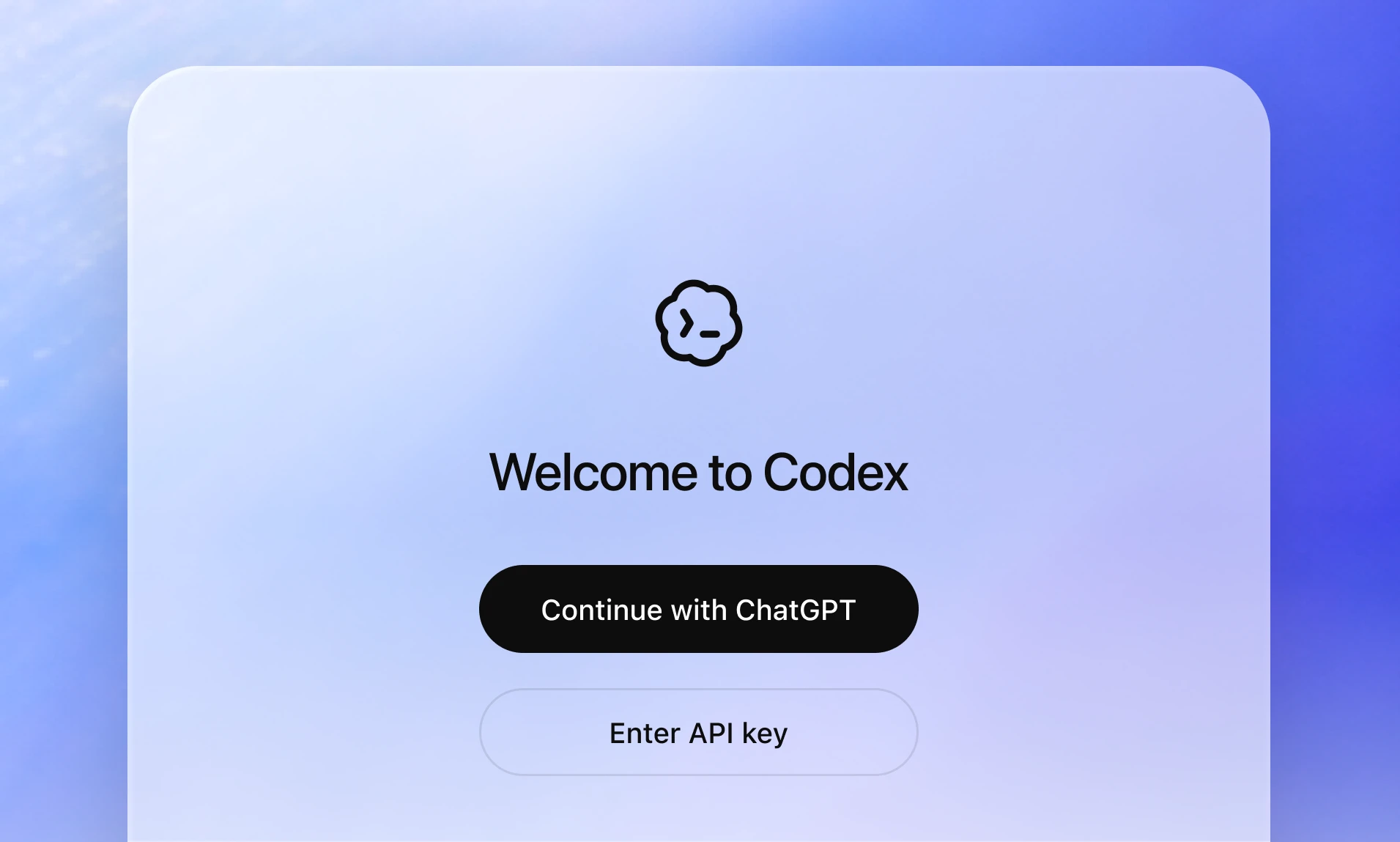
Figure 2: Choose a Project Folder
Codex is not only a chat tool. It usually needs to know which project it should work in. You can choose a project folder or Git repository.
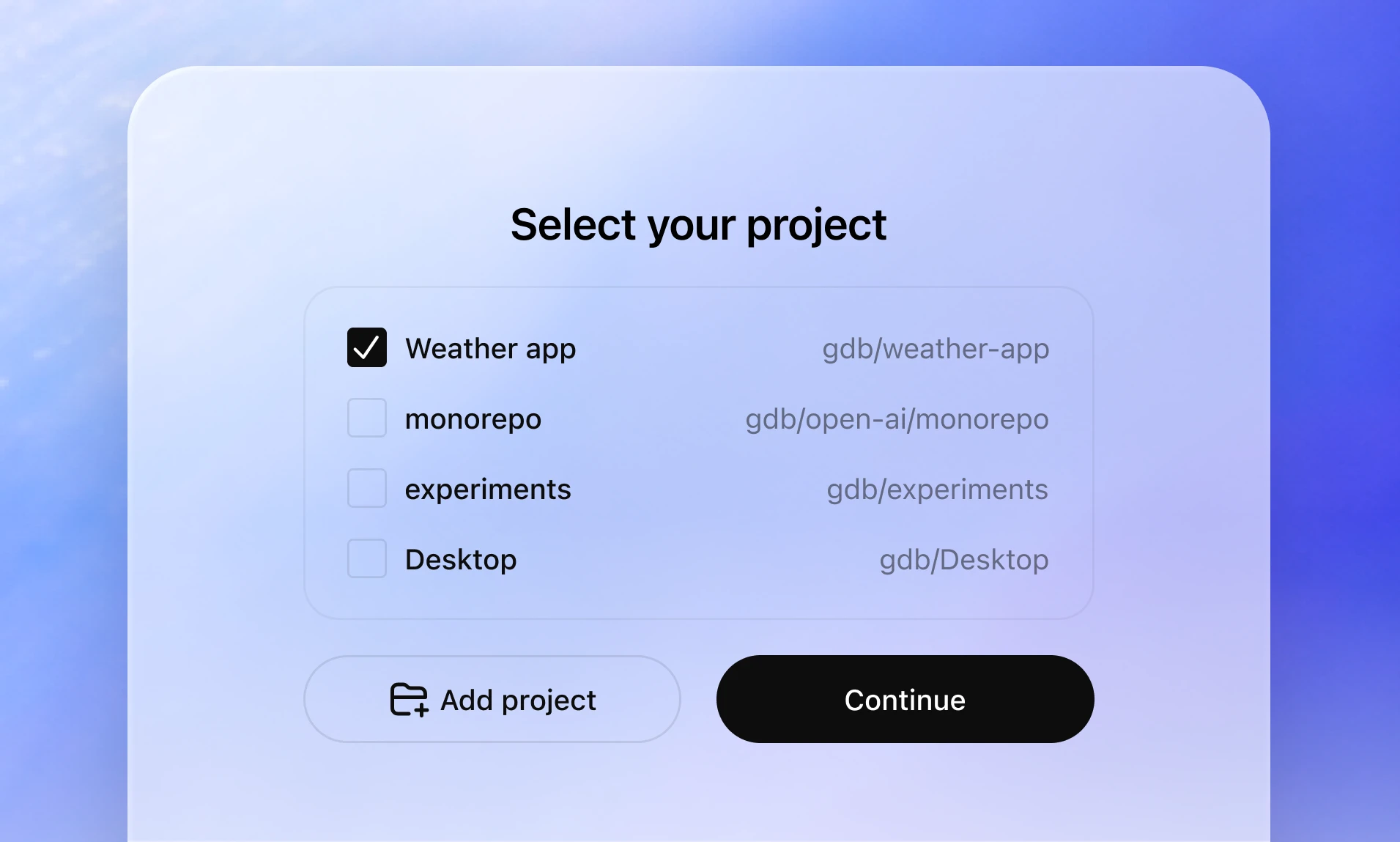
Figure 3: First Task Input
After choosing a project, you can describe what you want Codex to do. For the first task, ask it to explain the project instead of editing code.
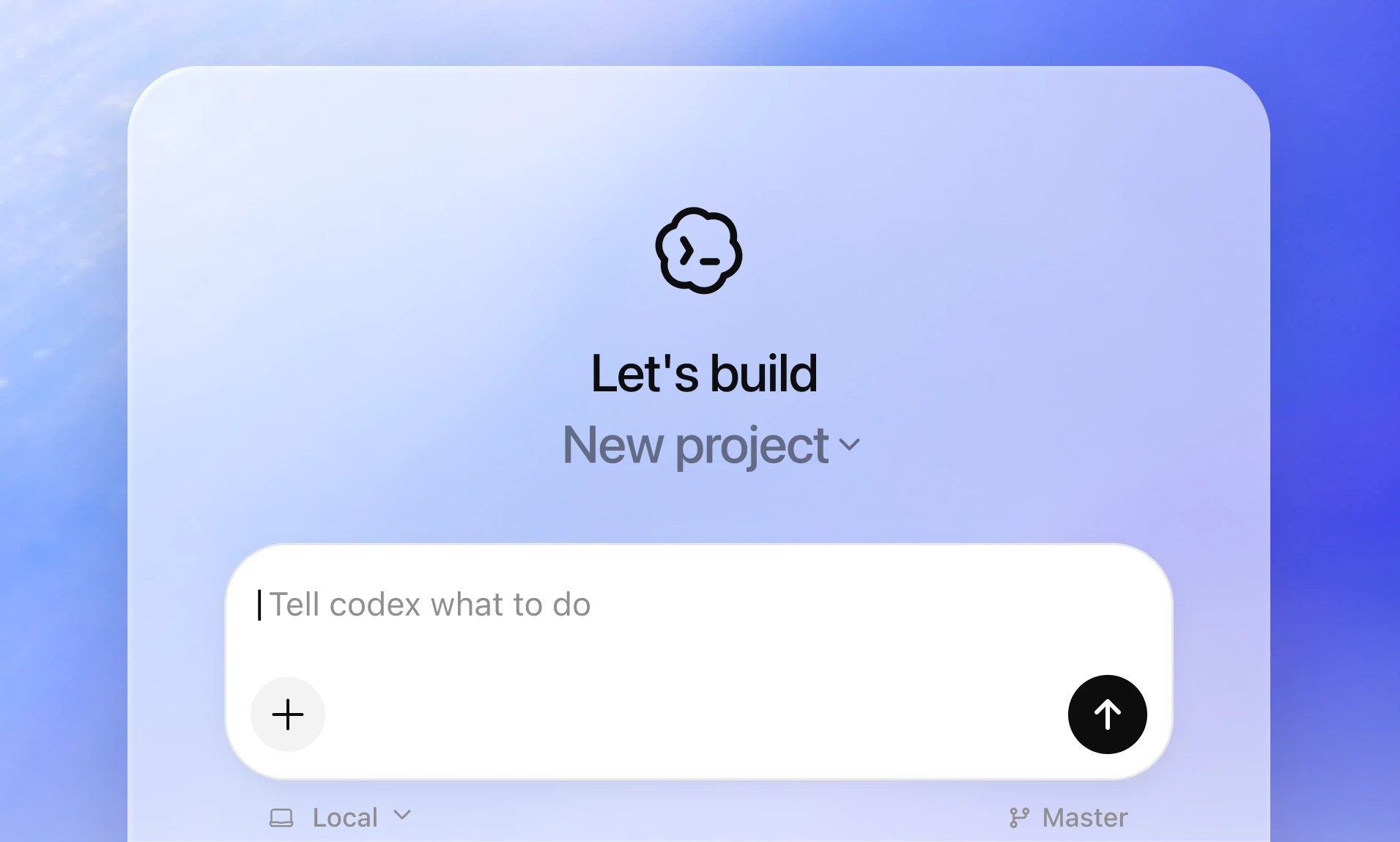
Figure 4: Codex App Main Interface
Codex App is a desktop workspace. It can run multiple threads, work with worktrees, use automations, and integrate with Git workflows.
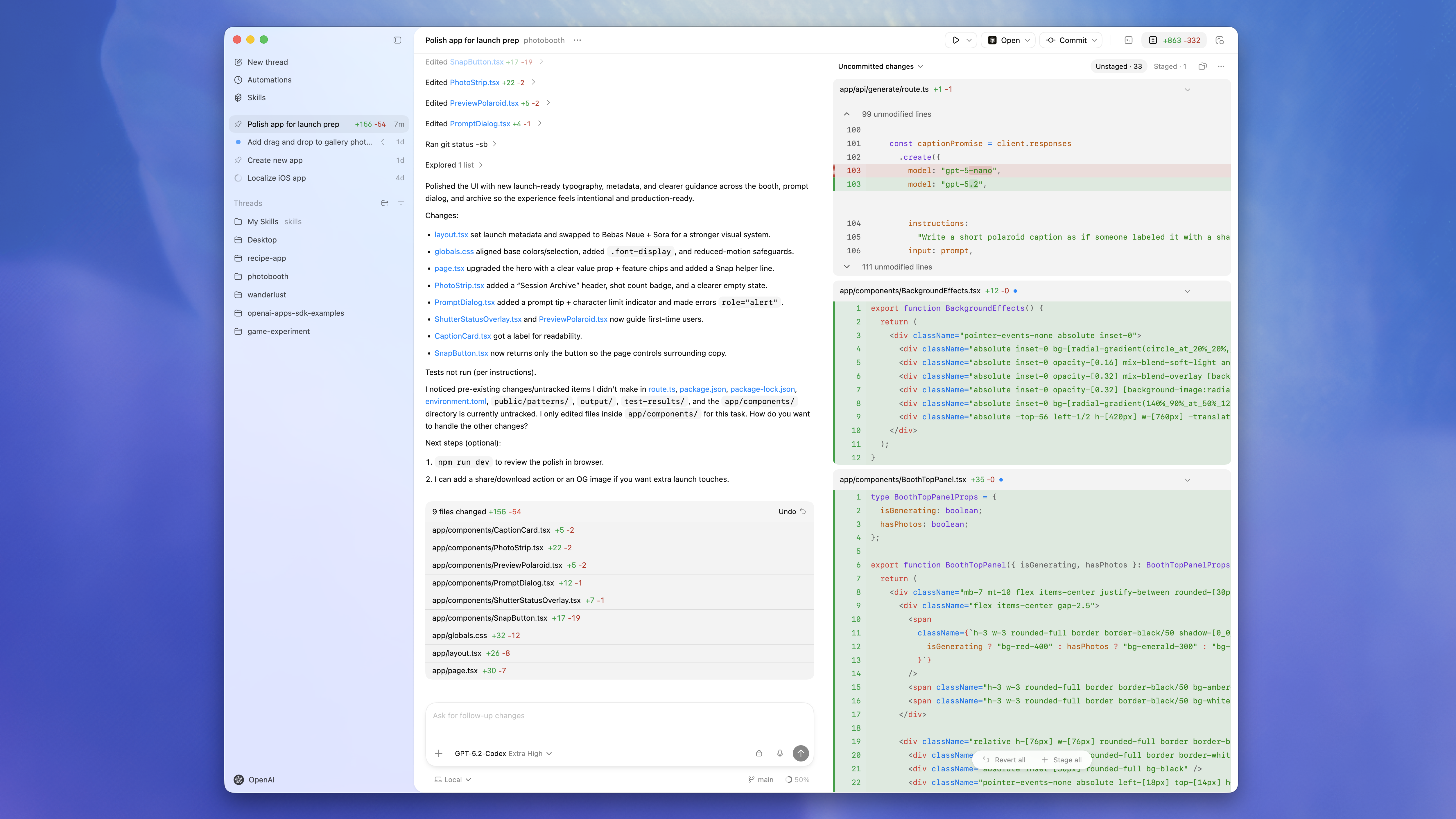
Figure 5: Local / Worktree / Cloud Modes
In Codex App, a thread can use different modes: Local, Worktree, or Cloud.
- Local: work directly in the current project directory.
- Worktree: isolate changes in a new Git worktree.
- Cloud: run in a configured remote cloud environment.
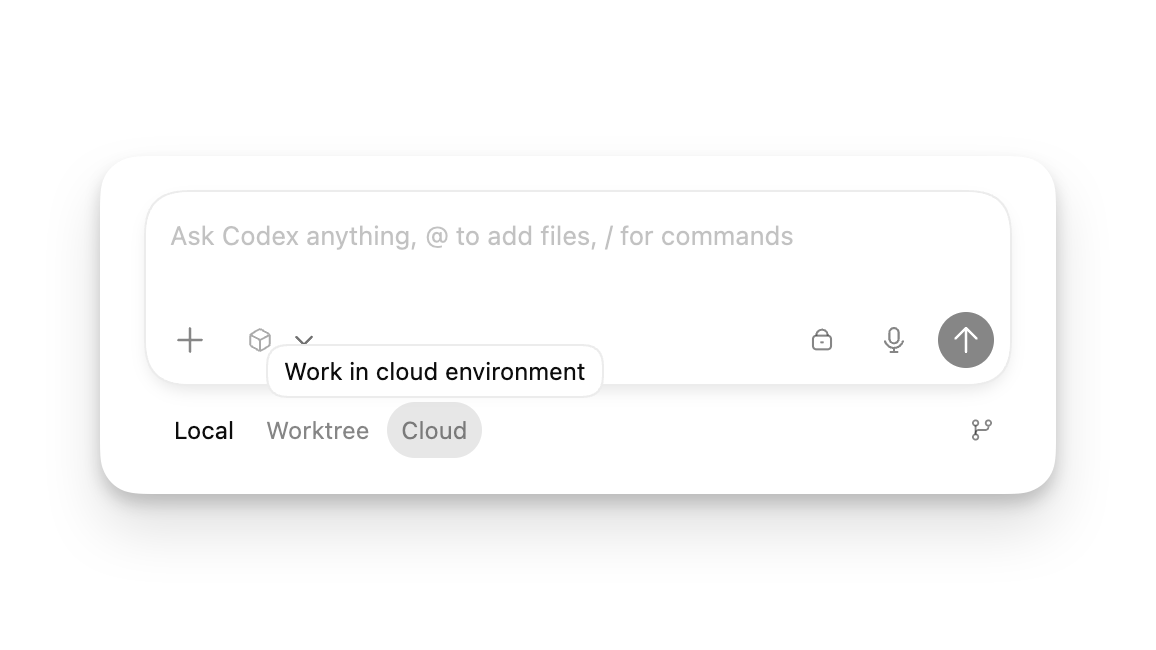
Figure 6: Git Commit Panel
Codex App includes Git tools. It can show diffs and help with staging, committing, pushing, and creating pull requests.
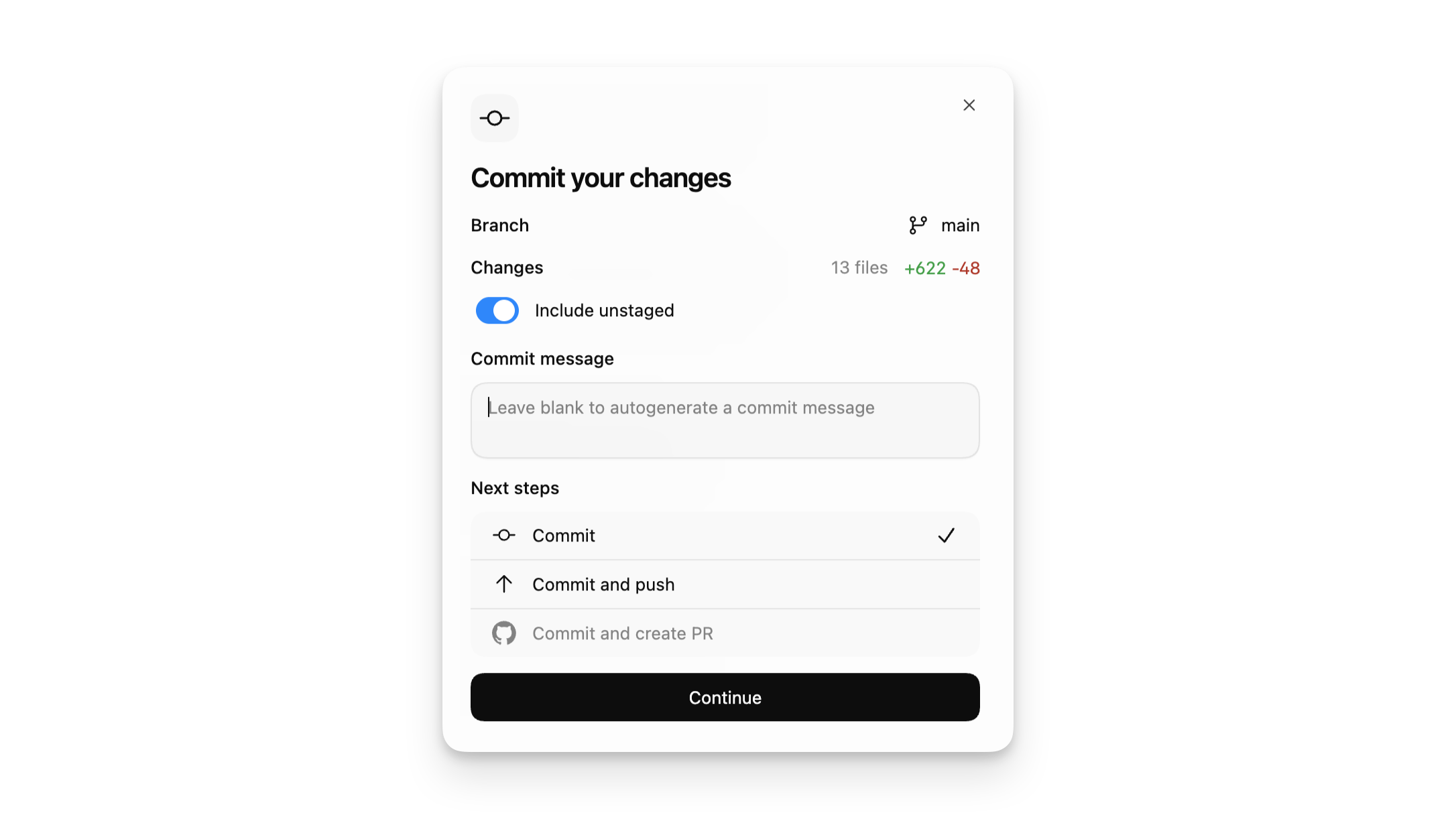
Figure 7: Integrated Terminal
Each thread can use an integrated terminal. Common commands include:
git status
npm test
pnpm run lint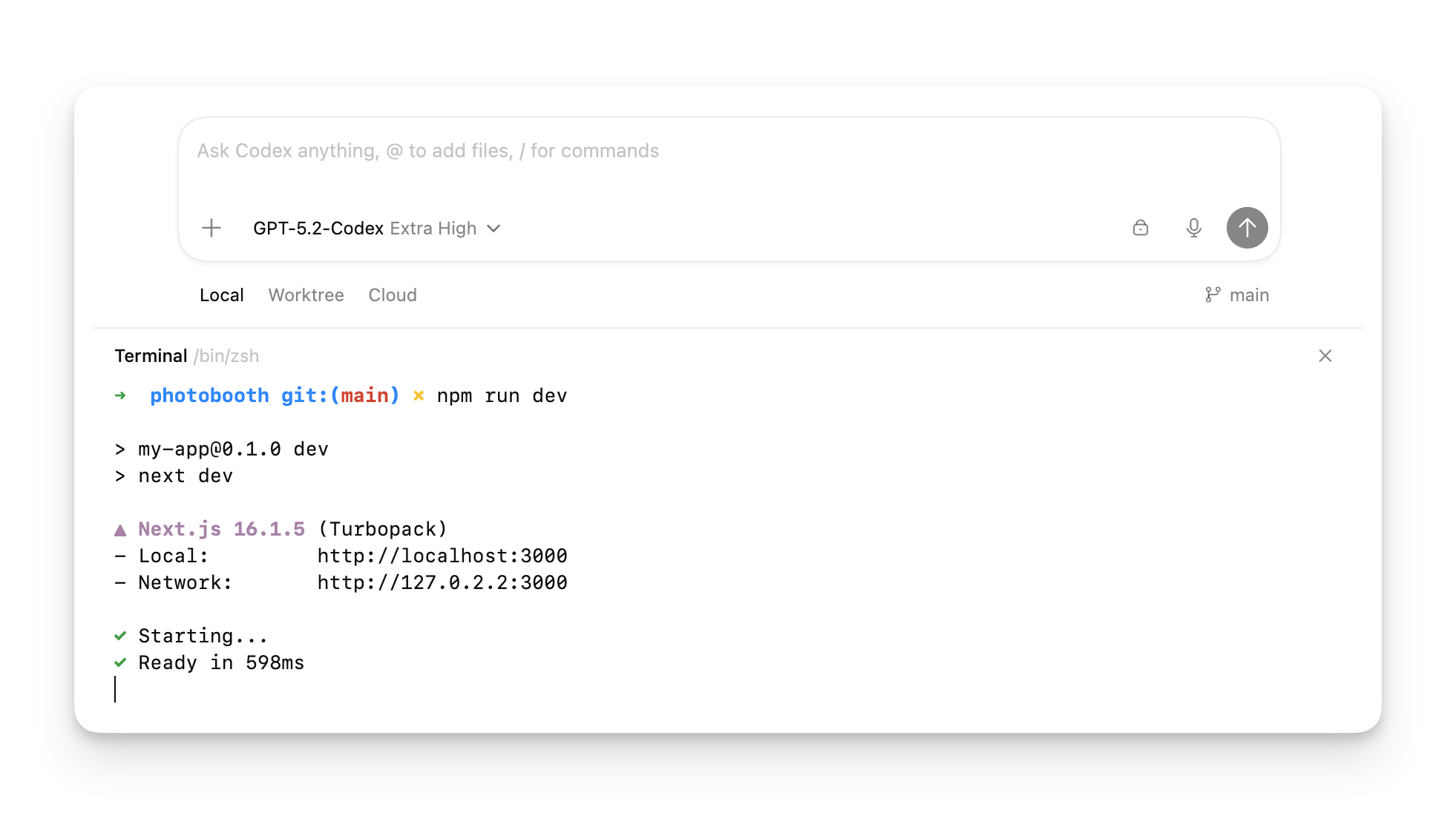
Figure 8: In-app Browser
For frontend projects, Codex can use the in-app browser to preview local pages, inspect page elements, or verify UI fixes.
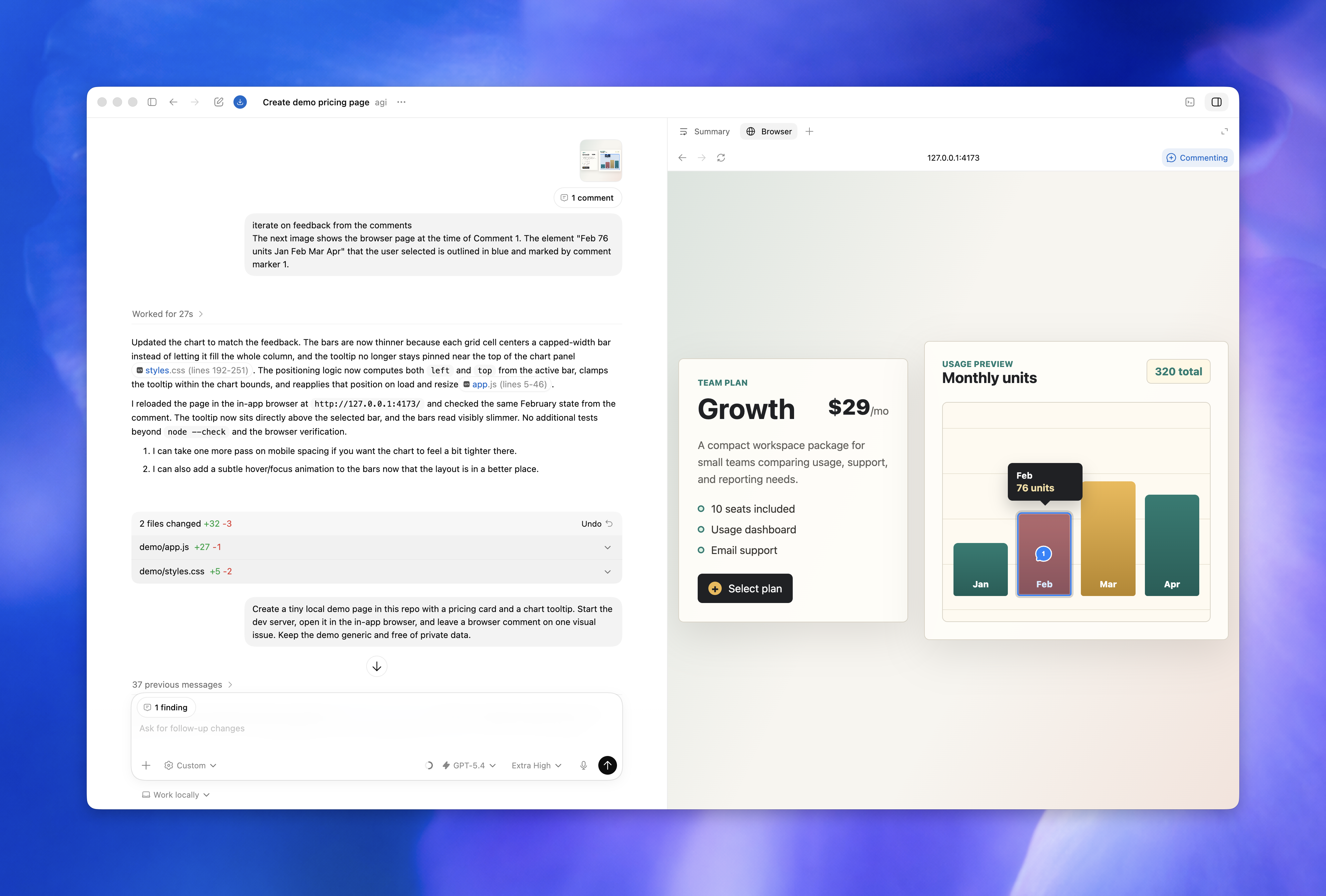
Figure 9: Codex Extension in VS Code / Cursor / Windsurf
If you already use VS Code, Cursor, Windsurf, or another VS Code-compatible editor, you can use the Codex IDE extension.
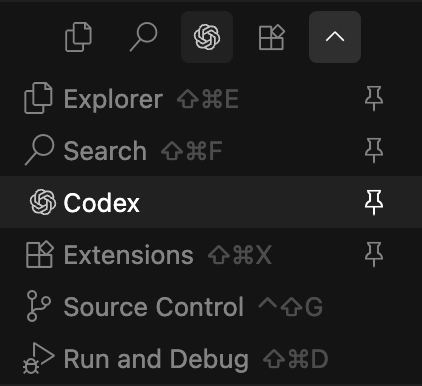
Figure 10: Permission Modes in the IDE
The Codex IDE extension supports modes such as Chat, Agent, and Agent Full Access. Beginners should start with Chat or normal Agent mode instead of granting Full Access immediately.
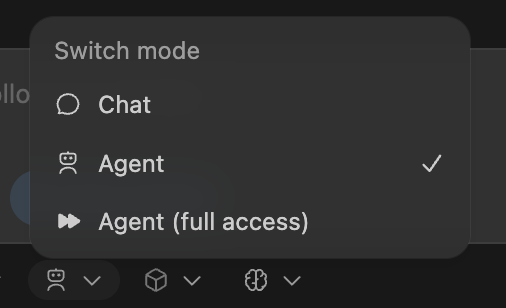
Figure 11: CLI Interface
Codex CLI runs the coding agent inside your terminal. It is better suited for people who are already comfortable with command-line workflows.

Figure 12: Requesting Codex Review on GitHub
After Codex Cloud / GitHub integration is configured, you can request a review in a GitHub PR comment with @codex review.
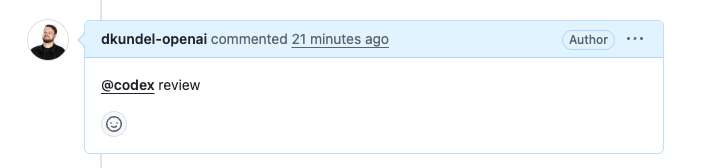
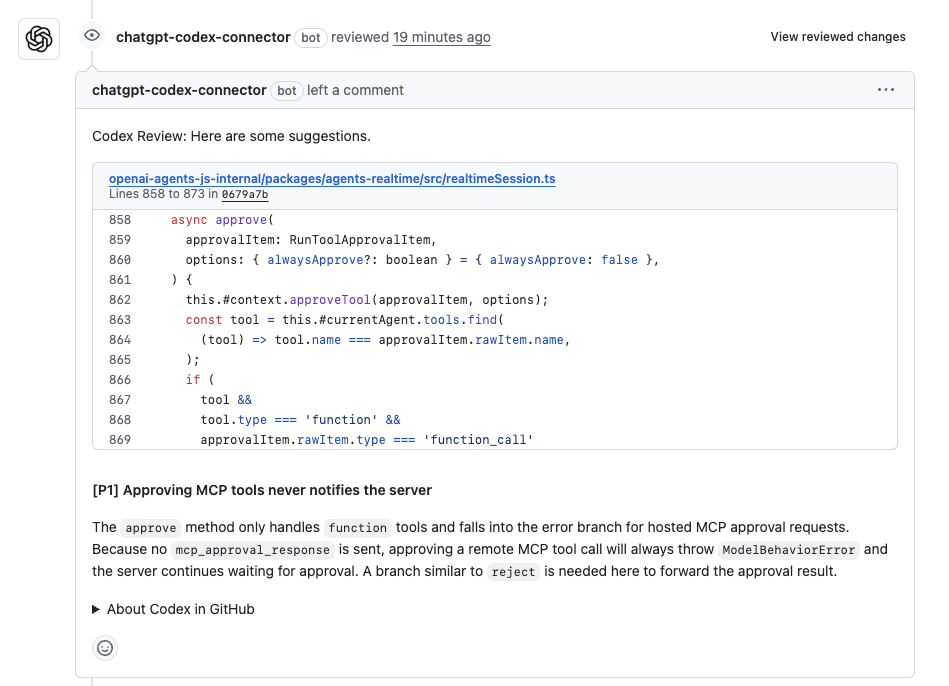
Figure 13: Codex Review Comment in a GitHub PR
Codex can leave review comments on a PR and point to specific code locations and issues.
3. Five Keywords Beginners Should Know
| Keyword | Beginner-friendly meaning | Why it matters |
|---|---|---|
| Project folder | The folder that contains your code | Codex needs to know where it should work |
| Git | A version control tool for code | If something breaks, you can roll back |
| diff | The before-and-after change | After Codex edits, you review the diff before accepting |
| PR / Pull Request | A set of changes submitted for review | Common in Codex Cloud and GitHub workflows |
| Sandbox / Approval | Limits where Codex can work and when it must ask for permission | Helps beginners avoid accidental deletion or risky commands |
If you only remember one word for now, remember diff.
After Codex edits files, do not only read its summary. Review the diff, because the diff is what it actually changed.
4. Choosing an Entry Point: App, IDE, CLI, or Web
Codex has several entry points. Beginners often get stuck because they do not know where to start.
  flowchart TD
    A[I want to start using Codex] --> B{Do I already use a code editor?}
    B -- Not really --> C[Start with Codex App]
    B -- Yes, VS Code / Cursor / Windsurf --> D[Use the Codex IDE extension]
    B -- I am comfortable with terminals --> E[Use Codex CLI]
    A --> F{Is the project on GitHub?}
    F -- Yes, and I want background tasks or PRs --> G[Use Codex Web / Cloud]
    F -- No, mainly local folders --> C
| Entry point | Best for | Main use |
|---|---|---|
| Codex App | Beginners | Desktop app, choose a project, then send tasks |
| IDE extension | People already using VS Code, Cursor, Windsurf, or JetBrains | Use Codex from the editor sidebar |
| CLI | People comfortable with terminals | Let Codex read, edit, and run a project from the terminal |
| Web / Cloud | GitHub projects that need background work | Run tasks in the cloud, review diffs, create PRs |
My recommendation is simple:
Beginners should start with Codex App. Developers who already live in an editor can use the IDE extension. Use CLI after you are comfortable with terminals. Use Web / Cloud when a GitHub project needs background tasks.
5. First Use: Start with Codex App
5.1 Account and Plan
Codex visibility, quotas, and available features can depend on your ChatGPT plan, workspace permissions, and login method.
If you use Codex App, you can usually log in with a ChatGPT account or an OpenAI API key. When using an API key, some Cloud-related features may be unavailable.
5.2 Download, Open, and Log In
For beginners, use this order:
- Install Codex App.
- Log in with your ChatGPT account.
- Choose a practice project folder.
- Use Local mode for the first task.
- For the first task, ask Codex to explain the project instead of editing code.
5.3 Recommended First Prompt
Please do not modify any files yet. Explain this project in English:

1. What does this project roughly do?
2. What are the main folders for?
3. Where might the entry points be?
4. If I want to run it, what commands would I usually execute?
5. What are you unsure about? Say "not sure" explicitly instead of guessing.
The key idea is: read first, do not edit yet.
6. First Prompt: Ask Codex to Read Before Editing
The most common beginner mistake is starting with prompts like:
Refactor the whole project for me.Build a complete website for me.Fix all bugs.These tasks are too broad. It will be hard for you to judge whether Codex did the right thing.
A safer sequence looks like this:
  flowchart TD
    A[Step 1: Explain the project without editing files] --> B[Step 2: Ask Codex for a plan]
    B --> C[Step 3: Change one small thing]
    C --> D[Step 4: Run checks or explain why checks cannot run]
    D --> E[Step 5: Review the diff]
    E --> F[Step 6: Accept, ask follow-ups, or roll back]
For the first task, you can ask:
Please do not modify files yet. Explain the structure of this project and tell me which files a beginner should read first.After you confirm that Codex understands the project well enough, move to the next step.
7. First Code Change: Change One Small Thing
After you are comfortable with Codex’s project understanding, ask it to make a tiny change.
A good first target is the README:
Please only modify README.md and add a section named "How beginners can start this project".

Requirements:
- Do not modify any other file.
- Do not install new dependencies.
- Do not change code.
- After editing, tell me what you changed.
- If the project does not clearly document startup commands, say "not sure" instead of inventing commands.
After Codex finishes, check two things:
git status
git diff
If you use Codex App, you can also review the changes in the review pane or diff pane.
What Should You Look for in the Diff?
- Did Codex change files you did not allow it to change?
- Did it add dependencies you do not recognize?
- Did it delete important configuration?
- Does the text or code match your request?
- Does the diff actually support what Codex claimed in its summary?
As a beginner, you do not need to understand every line of code immediately. Start by checking which files were changed. That alone prevents many problems.
8. Prompt Templates You Can Copy
8.1 Universal Structure
Goal:
What do I want you to complete?

Context:
What files, errors, reproduction steps, or screenshots are relevant?

Scope:
Which files may you edit? Which files must you not edit?

Constraints:
What must you avoid? For example: do not add dependencies, do not change the database schema, do not change API fields.

Verification:
What commands should you run after finishing? If you cannot run them, explain why.

Output:
List the changed files, verification result, risks, and suggested next steps.
This structure is simple, but useful. It reduces guessing.
8.2 Project Reading Template
Please do not modify files yet. Help me understand this project:

1. What does this project do?
2. What is the tech stack?
3. Where are the entry points?
4. What are the main directories responsible for?
5. In what order should a beginner read the code?
6. What are you unsure about?
8.3 Bug Fix Template
I am running into a bug. Please help me find and fix it.

Symptom:
[Paste the error or describe the behavior]

Reproduction steps:
1. [Step one]
2. [Step two]
3. [Step three]

Requirements:
- First explain what you think is causing it.
- Make the smallest necessary change.
- Do not add dependencies unless you ask me first.
- After fixing, run relevant tests or explain why you cannot run them.
- Finally, list changed files and risks.
8.4 Feature Template
Please help me add a small feature.

Feature goal:
[Describe the feature]

Scope:
- You may modify: [files/directories]
- Do not modify: [files/directories]

Requirements:
- Start with a short plan.
- Keep each step small.
- Follow the existing code style.
- If you need a new dependency, stop and ask me first.
- Run relevant checks after finishing.

Output:
- What files changed
- How to verify
- What I still need to manually check
8.5 Code Review Template
Please review the current uncommitted changes.

Focus on:
1. Obvious bugs
2. Missing edge cases
3. Possible regressions
4. Security or performance risks
5. Whether tests should be added

Requirements:
- List high-risk issues first.
- Then list medium- and low-risk suggestions.
- Do not modify files unless I explicitly ask you to.
8.6 UI Work with Screenshots Template
Codex supports image input. For UI tasks, you can attach screenshots, mockups, or error screenshots as context.
Please implement a page based on the attached screenshot.

Requirements:
- Use the current project's existing tech stack.
- Match the layout, spacing, and type hierarchy as closely as possible.
- Do not add a new UI library unless you ask me first.
- Add only the necessary components.
- After finishing, tell me which command to run and which URL to open to view it.
9. Safe Usage: Permissions, Sandboxing, Approvals, and Privacy
Codex can read files, edit files, and run commands, so safety boundaries matter.
9.1 Recommended Beginner Permissions
  flowchart LR
    A[Chat / Read-only<br/>Read, explain, plan] --> B[Agent / Auto<br/>Read, write, and run commands in workspace]
    B --> C[Full Access<br/>Broader permissions and network access]
    A -. Best for beginners .-> A
    B -. Good for small tasks .-> B
    C -. Use carefully .-> C
| Mode | Good for | Beginner recommendation |
|---|---|---|
| Chat / Read-only | Explaining projects, asking questions, writing plans | Use this first |
| Agent / Auto | Small file edits and tests | Review the diff before accepting |
| Full Access | Cross-directory, networked, or complex tasks | Do not use as the default when starting |
9.2 How to Handle Approval Prompts
When Codex asks for approval, first read what it wants to do.
Be careful with actions like:
rm -rfsudocurl ... | shnpm install some-package-you-do-not-understandAccessing system directories or directories outside the projectIf you are unsure, choose the narrower approval option or reject it and ask Codex to explain why the command is needed.
9.3 Do Not Give Codex These Secrets
Do not paste the following directly into your project, prompt, logs, or screenshots:
- API keys
- Database passwords
- Production tokens
- Customer private data
- Sensitive personal information
- Internal company material you are not allowed to share
- Production database connection strings
Be especially careful with error logs. They may contain tokens, cookies, URL parameters, or database connection information. Scan them before pasting.
9.4 Create a Git Checkpoint Before Editing
Inside the project directory, run:
git status
git add .
git commit -m "checkpoint before codex task"
After Codex edits files, run:
git status
git diff
If something goes wrong, Git gives you a way back.
If you do not know Git yet, start with this rule: do not let Codex make large changes in an important production project without a backup.
10. A 7-day Beginner Practice Plan
Day 1: Read the Project Only
Please do not modify files. Explain what this project does, its directory structure, entry points, and how to run it.Goal: understand what the project roughly is.
Day 2: Ask Codex to Write a Project Overview
Based on your understanding of the project, draft docs/project-overview.md.

Requirements:
- Write for beginners.
- Explain the main directories and startup steps.
- Do not modify code files.
Goal: practice asking Codex to generate documentation.
Day 3: Modify Only the README
Please only modify README.md and add installation and startup instructions.
Do not modify any other file.
Goal: practice reviewing diffs.
Day 4: Fix a Small Bug
Here is the error: [paste error]

Reproduction steps:
1. [Step one]
2. [Step two]
3. [Step three]

Please find the cause and make the smallest fix. Run relevant checks after fixing.
Goal: learn to provide symptoms and reproduction steps.
Day 5: Add a Test
Please add a minimal test for the issue we just fixed.

Requirements:
- First explain what the test covers.
- Do not do a broad refactor.
- Run the test after finishing.
Goal: do not only ask Codex to write code. Ask it to verify code.
Day 6: Ask Codex to Review Your Changes
Please review the current uncommitted changes. Focus on bugs, edge cases, regression risk, and whether tests are needed.
Do not modify files yet. Only output review comments.
Goal: use Codex as a second pair of eyes.
Day 7: Try Worktree or Cloud
Please try implementing this small feature in an isolated branch or worktree: [feature description]

Requirements:
- Start with a plan.
- Keep the change small.
- After finishing, explain how to verify it.
Goal: learn how to try more complex changes in an isolated environment.
11. Advanced: Use AGENTS.md to Teach Codex Your Project
When you use Codex often, consider adding an AGENTS.md file at the project root.
Think of it as a project guide written for AI agents. Codex reads these instructions before starting work, which helps it follow your team’s conventions.
Example:
# AGENTS.md

## Project Conventions

- After modifying JavaScript files, run npm test.
- Do not add production dependencies unless the user confirms first.
- When modifying shared utility functions, update docs as well.
- In the final summary, include changed files, verification, and risks.
Good things to put in AGENTS.md include:
- startup commands;
- test, build, and lint commands;
- code style;
- directories that must not be touched;
- release process;
- PR requirements;
- database and API compatibility rules.
A useful rule: when you remind Codex of the same thing twice, consider putting it in AGENTS.md.
12. FAQ
Q1: Can I use Codex if I do not know how to code?
Yes, but start with “explain the project”, “organize documentation”, “read this error”, and “write a learning path”. Do not begin with broad refactors.
You can use Codex as a learning assistant, but after it edits files, you still need to review the diff and verify the result.
Q2: Should I use Codex App, IDE, CLI, or Web?
Beginners should start with Codex App. If you already use VS Code, Cursor, or Windsurf every day, use the IDE extension. Use CLI after you are comfortable with terminals. Use Web / Cloud when a GitHub project needs background work or PR creation.
Q3: What if Codex makes the wrong change?
Review the diff first. If you do not like it, ask Codex to adjust the change. If the project becomes messy, roll back with Git.
If you have not learned Git yet, practice on a sample project before letting Codex make broad changes in an important project.
Q4: Codex asks me to approve a command. Should I allow it?
Only approve commands you understand.
Be especially careful with deleting files, installing dependencies, accessing directories outside the project, downloading from the network, or running scripts.
If you do not understand the command, ask:
Please explain what this command does, why it is necessary, and whether there is a safer alternative.Q5: Do I need an API key?
Not always.
Codex App can use a ChatGPT account or an OpenAI API key. When using an API key, some features such as cloud threads may be unavailable.
Q6: Can Codex deploy directly for me?
Do not let Codex operate production without human review.
A safer flow is:
Small task
-> Review diff
-> Run tests
-> Review risks
-> Commit / PR
-> Human confirmation before release
Final Summary
The right way to start with Codex is not:
Build the whole project for me in one shot.It is:
Explain the project first
-> Propose a plan
-> Make one small change
-> Review the diff
-> Run tests
-> Iterate
Keep tasks small, keep permissions tight, and make verification explicit. That is how you can safely start using Codex to read code, edit code, and review code from day one.
References
- Web - Codex | OpenAI Developers
- Prompting - Codex | OpenAI Developers
- Get started with Codex | OpenAI
- App - Codex | OpenAI Developers
- Quickstart - Codex | OpenAI Developers
- Features - Codex app | OpenAI Developers
- IDE extension - Codex | OpenAI Developers
- Features - Codex IDE | OpenAI Developers
- CLI - Codex | OpenAI Developers
- Code review in GitHub - Codex | OpenAI Developers
- Using Codex with your ChatGPT plan | OpenAI Help Center
- Features - Codex CLI | OpenAI Developers
- Agent approvals & security - Codex | OpenAI Developers
- How your data is used to improve model performance | OpenAI Help Center
- Custom instructions with AGENTS.md - Codex | OpenAI Developers