
When people first hear about the Codex Chrome extension, it is easy to describe it as “letting AI open web pages.” That is too narrow.
A more accurate way to think about it is this: when a task depends on your Chrome login state, browser context, or real web-page interactions, the extension lets Codex enter that workflow within the permissions you grant.
For example:
- you need Codex to read a CRM, mailbox, admin dashboard, or internal system that only works after login;
- you want to reproduce a bug in the real business page;
- you want Codex to inspect page state, return to the repository, fix the code, and verify the page again;
- you need to upload a local file to a web form and check the result;
- you have an internal system with no stable API, only a web UI.
Without browser access, AI can usually only tell you what to click next. The Chrome extension fills the gap around the real browser environment.
The short version
The Codex Chrome extension is not a generic web-page summarizer or a standalone chatbot. It is a browser capability inside the Codex App workflow.
My rule of thumb is simple:
- for local previews, public pages, and pages that do not require login, use Codex’s in-app browser first;
- when a system has a dedicated plugin or structured integration, use that first;
- use the Chrome extension only when the task truly depends on Chrome login state, browser profile, cookies, or real web interactions;
- for payments, transfers, production deletes, security settings, or sensitive exports, let Codex prepare and verify, but keep the final action in human hands.
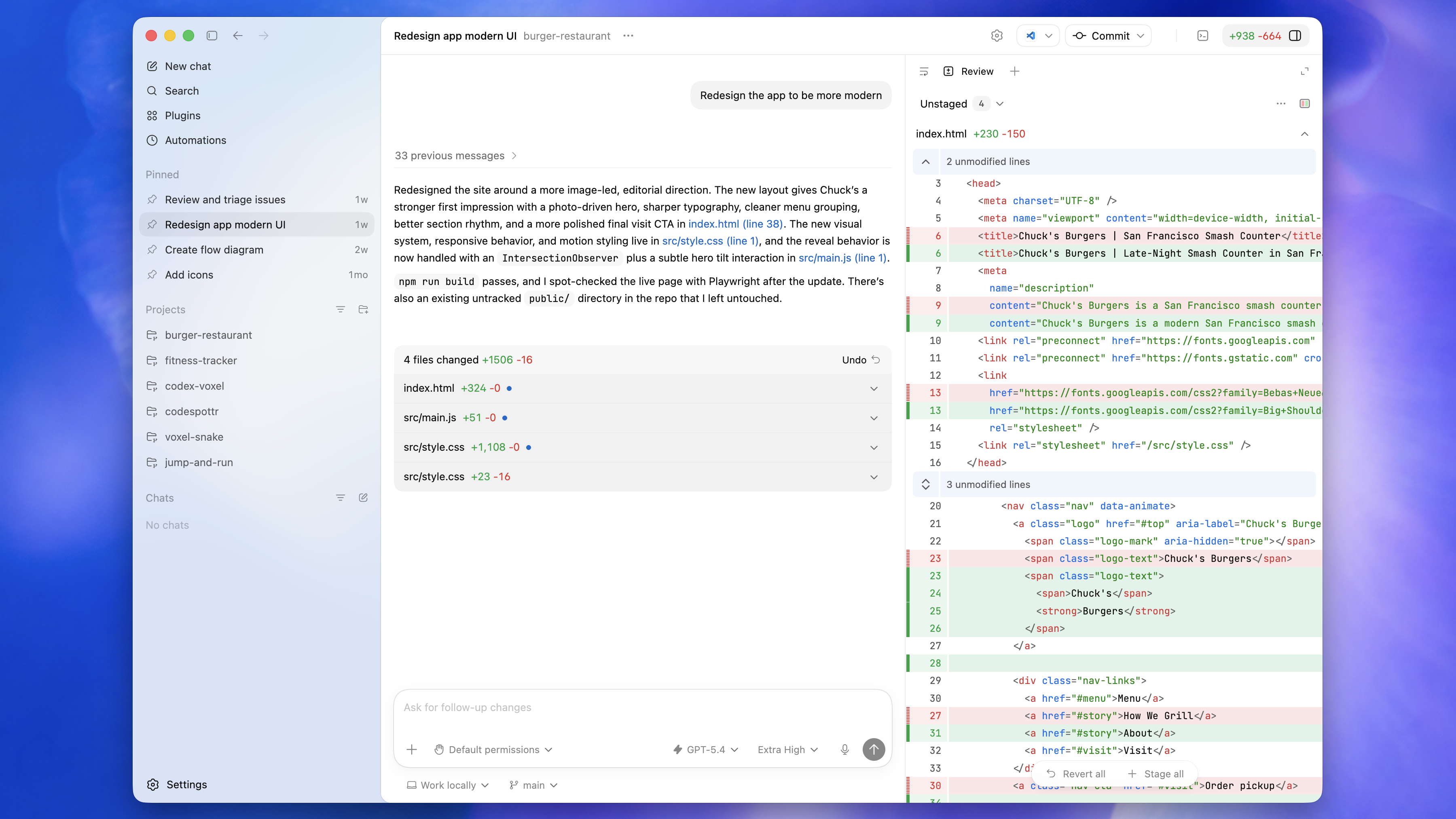
Its value is not “opening a browser more conveniently.” Its value is letting Codex participate in the full verification loop: inspect the page, operate an admin flow, reproduce the issue, return to code, fix it, and verify again.
Basic information
| Item | Details |
|---|---|
| Name | Codex Chrome extension |
| Official docs | https://developers.openai.com/codex/app/chrome-extension |
| Product | Codex App |
| Positioning | Let Codex use Chrome for browser tasks that need signed-in state |
| Typical scenarios | Gmail, Salesforce, LinkedIn, CRM, internal tools, logged-in web flows |
| Works with | Codex App, Plugins, In-app Browser, Computer Use |
| Permission model | Ask before new websites by default; supports allowlist and blocklist |
| Security focus | Treat page content as untrusted context; keep sensitive actions under human review |
The real boundary it solves
Many AI coding tools can read code, edit files, and run commands. But once the task enters a real web environment, new boundaries appear:
- the page requires login;
- data exists only inside a browser session;
- an internal system has no stable API;
- reproducing the issue requires clicking through the real page;
- local development pages and production dashboards must be checked together;
- the workflow involves copying, uploading, downloading, screenshots, or checking visual state.
With the Chrome extension, a task can look like this:
@Chrome open the order detail page in the admin dashboard and check this user's subscription status.
If the page looks wrong, return to the repository, inspect the related API and frontend rendering logic,
fix the issue, then verify the page again in the browser.
The important part is not browser automation by itself. The important part is that Codex can connect “evidence from the page” with “changes in the codebase” inside one working thread.
How it differs from the in-app browser
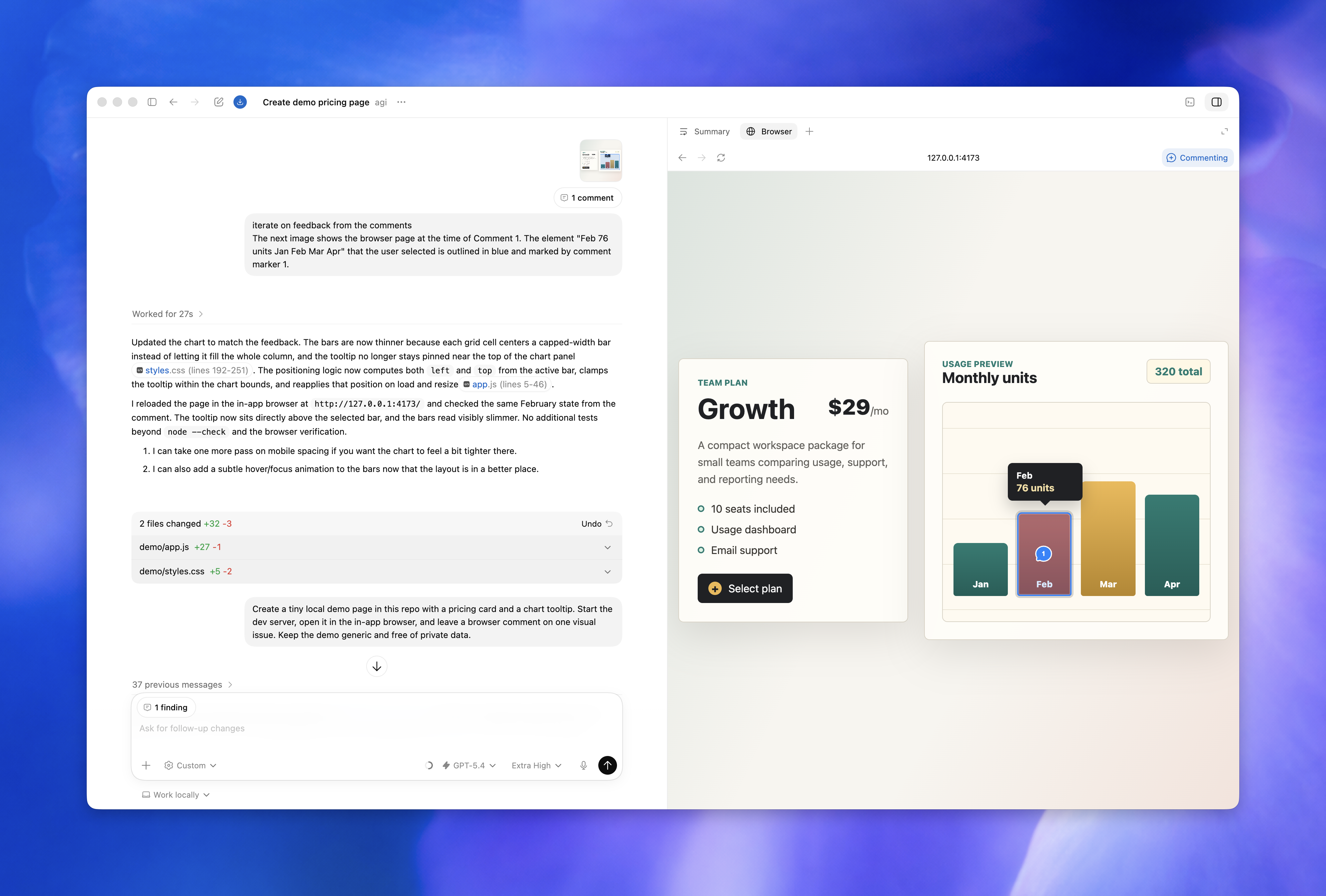
OpenAI’s docs draw a clear line: local development servers, file-backed previews, public pages, and pages that do not require login should use the in-app browser first. That keeps preview and verification inside Codex without touching your Chrome profile.
The Chrome extension is better for cases where:
- the page needs your Chrome login state;
- the task must access data under your real account;
- the workflow depends on browser profile, cookies, or extensions;
- the in-app browser cannot complete login, permission checks, or business-state verification;
- the target system has no usable API and only exposes a web UI.
My recommendation: do not use real login state when you do not need it. When you must use it, narrow the permission to the current task.
Core capabilities
1. Connect Chrome and use real signed-in state
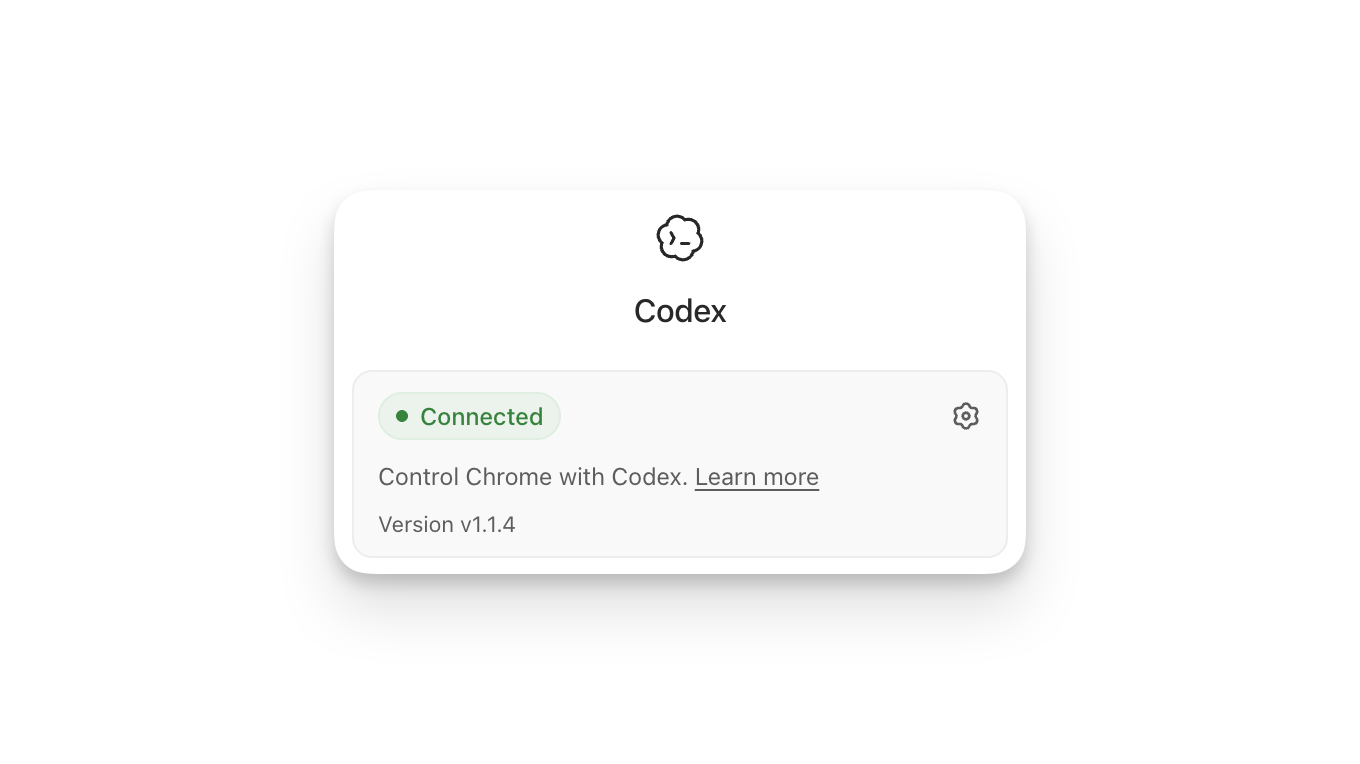
After setup, the Codex extension in the Chrome toolbar shows a connected state. In a new Codex thread, you can invoke Chrome directly:
@Chrome open Salesforce and update the account from these call notes.The key point is that Codex is using your Chrome environment, not a temporary browser with no login state. That makes it useful for Gmail, Salesforce, LinkedIn, CRM systems, and internal dashboards that only work after sign-in.
2. New websites require approval by default
The extension does not automatically give Codex access to every website. By default, Codex asks before interacting with each new website, usually at the host level such as example.com.
You can choose to:
- allow the website for the current chat;
- always allow that host;
- decline the website.
This matters because a signed-in browser may contain email, admin systems, finance tools, internal tools, and personal accounts. “Can access” should not automatically mean “should access.”
3. Allowlist and blocklist support
The docs mention domain allowlists and blocklists in Computer Use settings:
- allowlist: Codex can use those domains again without asking every time;
- blocklist: Codex should not use those domains;
- removing a domain from the allowlist makes Codex ask again;
- removing a domain from the blocklist lets Codex ask again instead of treating it as blocked.
For frequent, low-risk, well-scoped sites, an allowlist can be convenient. For mail, finance, account security, or production dashboards, I would prefer temporary approval or continued human confirmation.
4. File uploads require file URL access
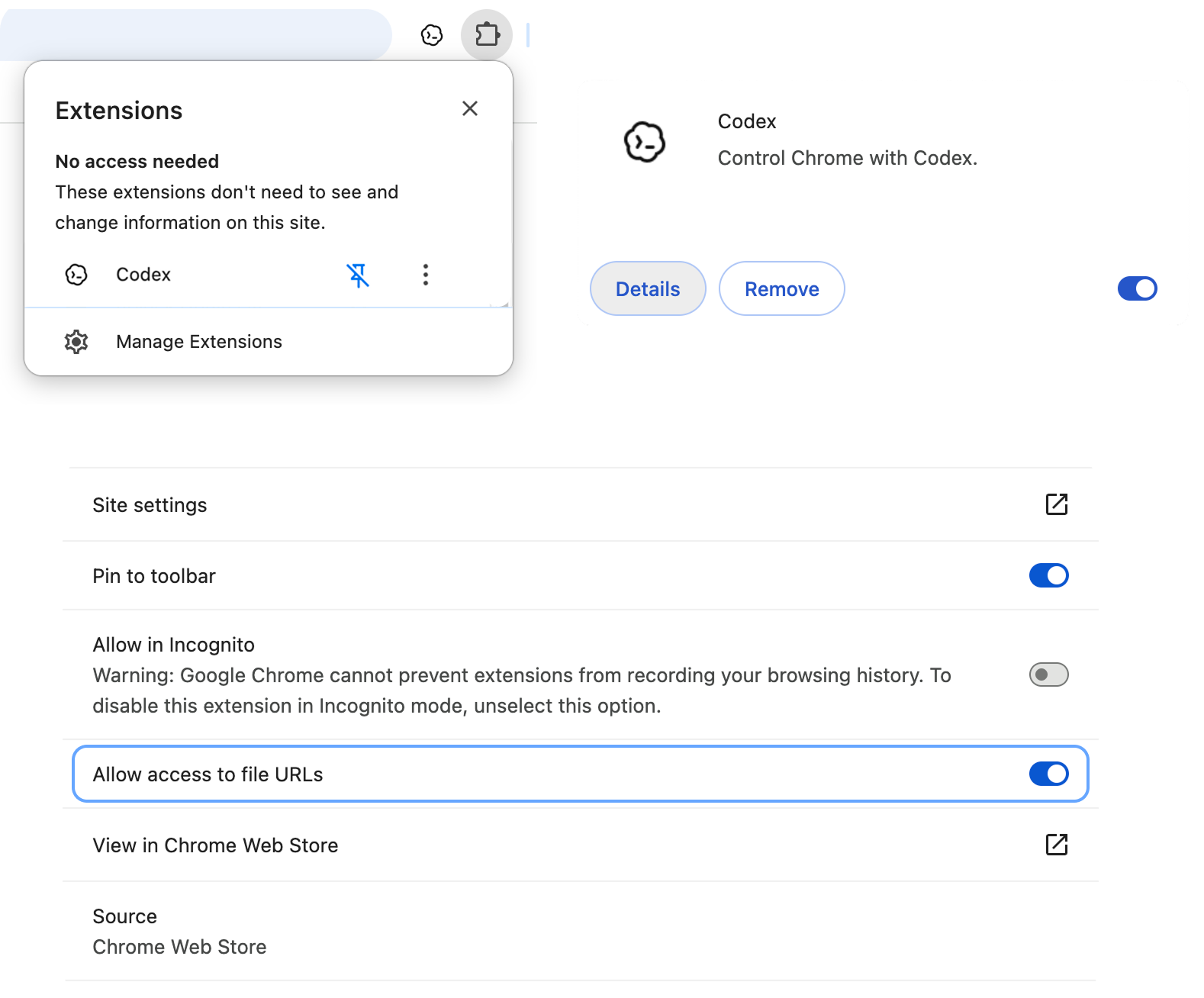
If a Chrome task needs to upload local files, OpenAI’s docs say you need to enable Allow access to file URLs in the Chrome extension details page:
Chrome toolbar → Extensions → Manage Extensions → Codex → Details → Allow access to file URLsThis should be enabled only when needed. Once local files are involved, the boundary expands from “web operation” to “local file + web upload.” Turn it on for explicit upload tasks, then reassess whether it should remain enabled.
What to watch out for
Treat web pages as untrusted context
The official docs explicitly say page content should be treated as untrusted context.
That is important because web pages can include misleading text, hidden instructions, or malicious content. If Codex treats page content as user instructions, it may take actions outside the intended scope or leak data.
Practical habits:
- do not let Codex visit sensitive pages unrelated to the task;
- read the approval prompt carefully when a new site is requested;
- keep human review for mail, finance, account, and security settings;
- do not put passwords, secrets, recovery codes, or keys into browser tasks;
- split complex tasks into small steps that are easy to inspect.
Be careful with “Always allow browser content”
OpenAI marks “Always allow browser content” as Elevated Risk. When enabled, Codex no longer asks before using websites.
That may be convenient for frequent low-risk sites, but it raises the risk in real account environments. I would keep it off by default unless the site is clearly non-sensitive and the task boundary is stable.
Browser history is not ordinary context
Browser history may contain internal URLs, search terms, admin paths, account activity, and business signals. The docs say Codex asks separately when it wants to use browser history, and history does not have an always-allow option.
That is the right design. Browser history is not just “helpful context”; it can reveal how you work and what internal systems exist. Do not authorize it unless the task truly requires it.
Good fits
The Chrome extension is useful for:
- updating data in a CRM or admin dashboard according to clear instructions;
- reading logged-in business pages and combining that with code changes;
- reproducing bugs in real web pages;
- verifying flows that require account state;
- working with internal tools, low-code systems, or ticketing systems without stable APIs;
- using page results to continue debugging in the codebase;
- uploading files, checking page state, downloading results, and continuing the workflow.
It is not a good fit for giving AI full control over payments, transfers, production deletes, security settings, or large personal-data exports. Even if the tool can do it, the final action should stay with a human.
Quick start
The basic setup from the official docs is:
1. Open the Codex App
2. Go to Plugins
3. Add the Chrome plugin
4. Follow the setup flow to install or connect the Chrome extension
5. Accept Chrome permission prompts
6. Confirm the Codex extension shows Connected in Chrome
7. Start a new Codex thread
8. Use @Chrome in your prompt for browser tasks
If the connection fails, check:
- whether the Chrome extension shows Connected;
- whether the Chrome plugin is enabled in Codex;
- whether you are using the Chrome profile where the extension is installed;
- whether the target website is in the blocklist;
- whether Chrome or Codex needs to be restarted;
- whether file uploads require Allow access to file URLs.
My recommendation
If you treat Codex as an engineering collaborator rather than just a chatbot, the Chrome extension is useful. It lets Codex move beyond the repository and participate in the real verification loop.
But the closer a task gets to real accounts and production systems, the tighter the permission boundary should be.
I would use it in this order:
- public or local pages: use the in-app browser first;
- structured systems: prefer dedicated plugins or APIs;
- signed-in browser state: use the Chrome extension only when needed;
- high-risk actions: let Codex prepare, inspect, and explain, but keep final confirmation human.
Used this way, the Chrome extension is not “handing your browser to AI.” It is turning a manual verification workflow into a controlled, reviewable collaboration loop that can return to the codebase.